
How to Fix DisplayPort No Signal on Windows 11 (2026 Step-by-Step + VESA Cable Fix)
 By
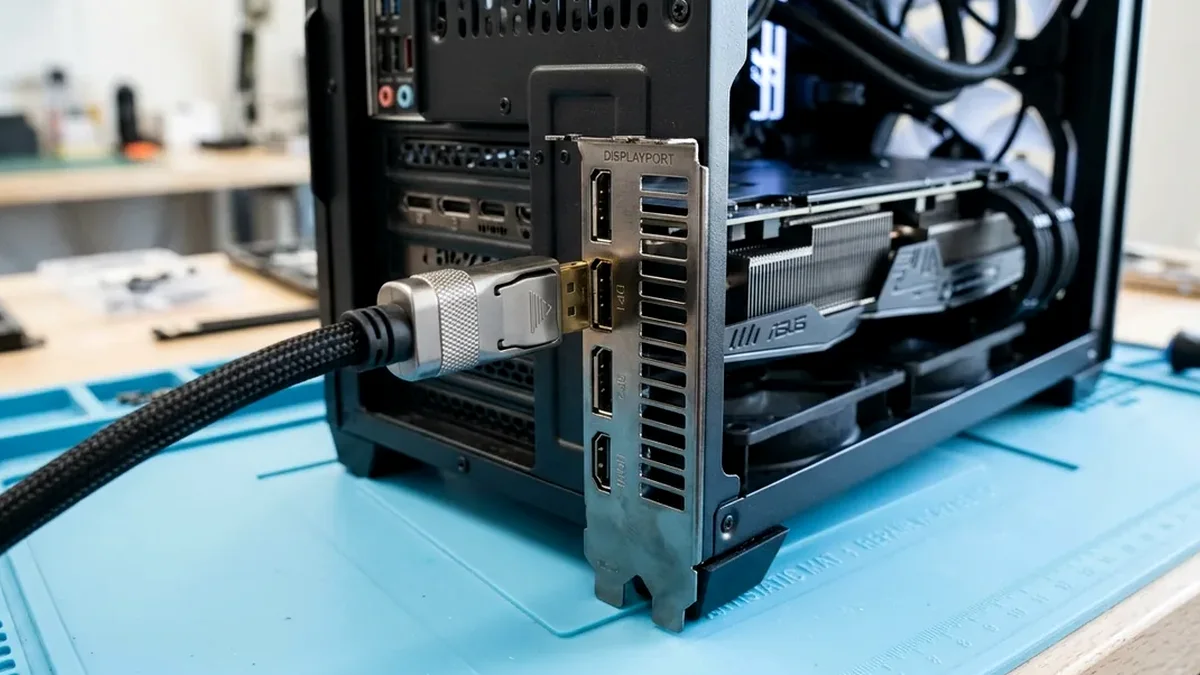
To fix 'DisplayPort No Signal' on Windows 11 immediately: (1) Press Win + Ctrl + Shift + B to restart the GPU display driver, (2) Unplug the monitor's AC power brick from the wall for 60 seconds to drain capacitor EDID lockups, and (3) Replace uncertified stock cables with a VESA-Certified DP80 / DP54 DisplayPort 2.1 cable without Pin-20 backfeed.
On This Page 8 sections
Few hardware problems are more frustrating than hearing your Windows 11 login chime through your headphones or seeing your PC tower fans spin while your gaming monitor flashes “DisplayPort No Signal – Going to Sleep”.
Unlike legacy HDMI, DisplayPort relies on a bidirectional 1-megabit AUX channel and Hot Plug Detect (HPD) 3.3V handshake before the GPU will transmit a single video frame. If your monitor’s internal scaler chip locks its HPD pin low during Windows Modern Standby, or if an uncertified cable drops VESA Display Stream Compression (DSC) training packets at 1440p 240Hz/360Hz or 4K 144Hz/240Hz, the GPU turns the output port completely off. Work through the 5 verified engineering fixes below in order.
Reset the Windows 11 Graphics Driver Stack (Keyboard Shortcut)
If your PC just woke from sleep with a black screen and “DisplayPort No Signal”, do not hold the power button yet. Press this 4-key combination simultaneously on your keyboard:
Win + Ctrl + Shift + BYou will hear a short system beep. This command forces the Windows Display Driver Model (WDDM) kernel to discard its stale frame buffer, reload the NVIDIA/AMD/Intel driver, and broadcast a fresh DisplayPort AUX wake pulse across every GPU port without closing your open apps.
Perform a 60-Second Monitor Flea-Power Capacitor Drain (Solves 60% of Cases)
Pressing the power button on your monitor bezel only puts the display into soft standby – its internal Realtek/MediaTek scaler microcontroller stays powered by the 5V standby capacitor rail. When a DisplayPort link-training error occurs, that scaler chip freezes and refuses to assert the Hot Plug Detect (HPD) pin high.
- Leave your Windows 11 PC powered ON.
- Physically unplug the power cable from the back of the monitor (or unplug its power brick from the wall outlet).
- Unplug the DisplayPort cable from both the monitor and the graphics card.
- Wait a full 60 seconds until the monitor’s power LED and internal capacitors discharge completely to 0V.
- Plug the DisplayPort cable back in firmly until it clicks, then reconnect the monitor’s power cord.
Check Physical GPU Seating, Horizontal Ports & Motherboard Debug LEDs
If you just built or moved your PC and get “DisplayPort No Signal” from initial power-on:
- Horizontal GPU vs Vertical Motherboard Trap: Make sure your DisplayPort cable is plugged into the lower horizontal slots on your dedicated graphics card, NOT the upper vertical DisplayPort jack next to your motherboard’s USB ports.
- Remove the Neighboring Plastic Port Dust Caps: Thick DisplayPort connector housings often hit the adjacent plastic dust plugs left inside your GPU’s other ports, stopping the gold pins from inserting the final 1.5mm!
- Check the Motherboard “VGA” Debug LED: Look at the 4 tiny LEDs on the right edge of your motherboard (CPU, DRAM, VGA, BOOT). If the DRAM (Orange) light stays lit on a new AM5 Ryzen build, wait 60 seconds for DDR5 memory training; if the VGA (White/Red) light stays lit, power off the PSU and firmly re-seat your GPU and its 12V-2×6 / 8-pin power cables.
Disable Monitor “Deep Sleep” & Windows 11 Fast Startup / PCIe Power Saving
If your DisplayPort monitor loses signal every time your PC wakes from sleep:
- In Your Monitor’s On-Screen Display (OSD) Menu: Navigate to Settings / System and set DisplayPort Deep Sleep > OFF and Auto Input Detection > OFF (manually lock input to
DisplayPortso the monitor doesn’t cycle through HDMI 1 and HDMI 2 while your GPU is waking up). - In Windows 11 Power Plan: Open an Administrator Terminal and run the command below to disable Windows Fast Startup (hybrid hibernation) and PCIe Link State Power Management:
powercfg /h offReplace Faulty Stock Cables with a VESA-Certified Non-Pin-20 DP 2.1 Cable
Two cable defects cause chronic DisplayPort signal dropouts on high-refresh monitors (listed in our best gaming monitors guide):
- The Infamous “Pin 20” 3.3V Backfeed Defect: The VESA specification forbids connecting Pin 20 (`DP_PWR` 3.3V) inside standard monitor cables. Cheap uncertified cables connect Pin 20 on both ends – feeding 3.3V power from your monitor straight backward into your turned-off graphics card, preventing the PC from booting or waking from sleep!
- High-Frequency DSC Signal Attenuation: Running 1440p 240Hz/360Hz or 4K 144Hz/240Hz requires 25.92 to 54 Gbps of signal integrity.
Recommended Amazon Fix: VESA-Certified DisplayPort 2.1 Cable
Silkland / Cable Matters VESA Certified DisplayPort 2.1 Cable (DP54 / DP80, 6.6ft)
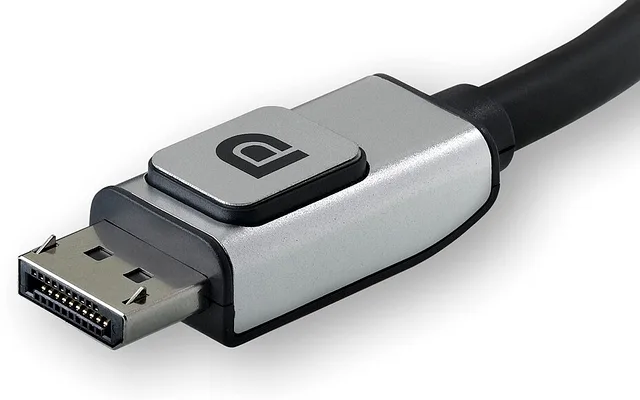
Listed directly on the official VESA Certified database on Amazon, the Silkland (and Cable Matters) VESA Certified DisplayPort 2.1 cable leaves Pin 20 physically disconnected (0% risk of 3.3V GPU backfeed) and uses triple-shielded 28AWG tinplate copper conductors rated for 54Gbps/80Gbps UHBR bandwidth – curing 1440p 360Hz and 4K 240Hz wake-from-sleep and VRR black screens permanently.
- Certification
- Official VESA Certified DP 2.1
- Pin 20 Safety
- Pin 20 Disconnected (No 3.3V Backfeed)
- Bandwidth
- 54Gbps / 80Gbps UHBR (Backward Compatible w/ DP 1.4)
- Shielding
- Triple-Layer Aluminum Foil + Braided EMI Shield
Related Windows 11 Hardware Fixes
Pros
- Official VESA Certified DP54/DP80 bandwidth stops 1440p 240Hz/360Hz & 4K 240Hz black-screen drops
- Non-connected Pin 20 prevents 3.3V GPU backfeed sleep/wake lockups
- Latch-free or gold-plated locking connector options under $17 on Amazon
Cons
- Keep passive copper DP 2.1 runs at 6.6ft (2m) or 10ft (3m) max for UHBR signal integrity
Frequently Asked Questions
Why does my monitor work with HDMI but says 'No Signal' with DisplayPort?
Because HDMI keeps an active +5V detect line continuously, whereas DisplayPort drops its Hot Plug Detect signal if the monitor enters Deep Sleep or if the cable's AUX channel fails link training. Unplugging the monitor's AC power cord from the wall for 60 seconds and turning off 'DP Deep Sleep' in the monitor menu resolves this 90% of the time.
Does a DisplayPort 2.1 cable work on a DisplayPort 1.4 monitor and GPU?
Yes! DisplayPort 2.1 cables are 100% backward compatible with DisplayPort 1.4, 1.4a, and 1.2 ports while providing far superior EMI shielding and lower bit-error rates for high-refresh G-Sync/FreeSync VRR.
How do I know if my DisplayPort cable has the bad Pin 20 connected?
Symptoms of a live Pin 20 cable include: your PC case fans or motherboard RGB LEDs stay faintly glowing even after you shut down Windows, or your PC fails to POST on a cold boot until you unplug the DisplayPort cable and plug it back in. Replace that cable immediately with a VESA-certified Silkland or Cable Matters DP cable.
Why did updating my NVIDIA or AMD GPU driver cause DisplayPort No Signal on an older graphics card?
If you use an older GTX 10-series (1070/1080 Ti) or RTX 3080 Ti / 3060 with a modern DisplayPort 1.4 DSC monitor, connect via HDMI temporarily and run NVIDIA's free 'DisplayPort Firmware Updater Tool' to patch the GPU's VBIOS DP 1.4 UEFI module.