
Fix New M.2 NVMe SSD Not Showing Up in Windows 11 or BIOS (2026 GPT Guide)
 By
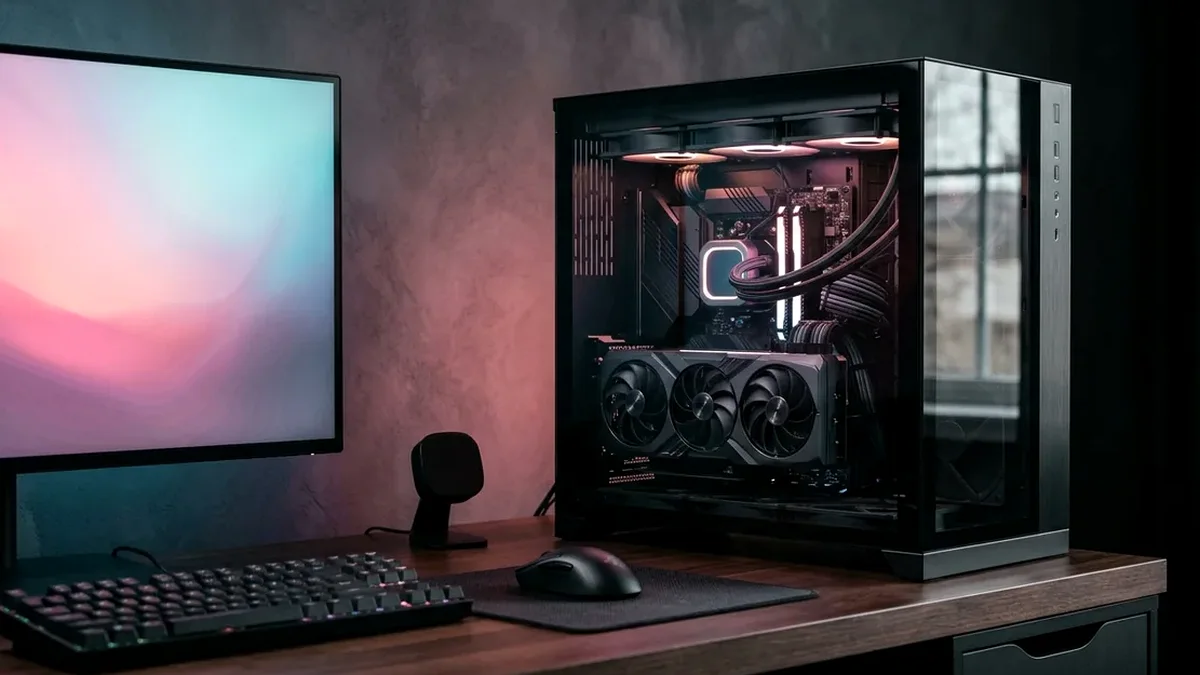
When a brand-new M.2 NVMe SSD doesn't appear in Windows 11 File Explorer ('This PC'), 90% of the time nothing is broken: new internal SSDs ship completely unpartitioned ('Unallocated'). Right-click the Start button > open 'Disk Management' > initialize the disk as GPT > right-click the black Unallocated bar > click 'New Simple Volume' to assign a drive letter (D:) in 20 seconds!
On This Page 5 sections
You just installed a brand-new 2TB or 4TB M.2 NVMe SSD into your motherboard or laptop, booted into Windows 11, opened File Explorer (This PC), and – nothing is there except your old C: drive.
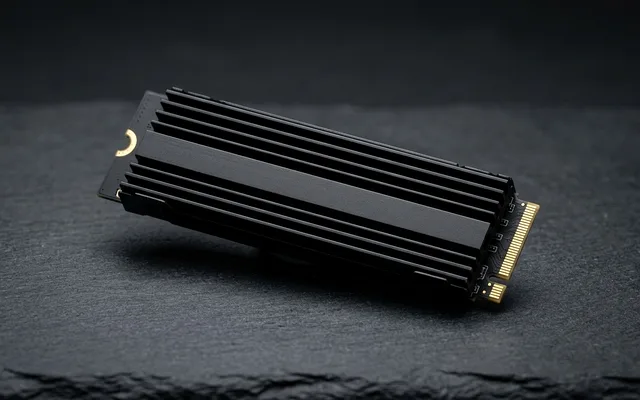
Before you unscrew your PC case, take a deep breath: in 9 out of 10 cases, your new SSD is working 100% normally. Unlike external USB flash drives (which come pre-formatted as exFAT from the factory), brand-new internal M.2 NVMe SSDs ship with completely blank, raw flash blocks so you can choose whether to use them as a multi-partition Windows OS boot drive, a Linux ext4 volume, or a secondary GPT game drive. Follow the 4 steps below.
Initialize & Format the New SSD in Windows 11 Disk Management (20-Second Fix)
- Right-click the Windows 11 Start Button (or press
Win + X) and click Disk Management. - An “Initialize Disk” pop-up window will usually appear immediately. Select GPT (GUID Partition Table) (never choose old MBR for modern NVMe drives!) and click OK.
- Scroll down the bottom half of the Disk Management window until you see your new SSD listed as Disk 1 (or Disk 2) – Unallocated with a solid black bar across the top.
- Right-click anywhere on that black Unallocated box and click New Simple Volume…
- Click Next > Next (leave full size) > pick a Drive Letter (like
D:orG:for Games) > keep File System as NTFS with Perform a quick format checked > click Finish.
Within 3 seconds, your new 2TB/4TB NVMe SSD will pop open in Windows 11 File Explorer ready for your Steam library!
If It Shows in BIOS & Device Manager, But NOT in Disk Management: Check “Storage Spaces”
What if your new NVMe SSD is listed clearly inside your motherboard BIOS and inside Device Manager > Disk drives, yet Disk Management doesn’t show it at all? Two Windows 11 culprits cause this:
- Windows Storage Spaces Hijack: Press
Win + S, type Manage Storage Spaces, and open it. If Windows accidentally absorbed your new blank SSD into a Storage Pool, click Change settings > Prepare for removal / Delete pool – it will immediately appear in Disk Management! - AMD RAID / Intel VMD Mode Enabled in BIOS: If your motherboard BIOS SATA/NVMe mode got switched from AHCI to RAID / Intel VMD, Windows won’t see the new drive without a RAID driver. Switch NVMe mode back to standard AHCI in BIOS.
If It Does NOT Show Up in BIOS Either: Check M.2 Slot Seating & PCIe Lane Sharing
If your motherboard BIOS reports the M.2 slot as [Not Present / N/A]:
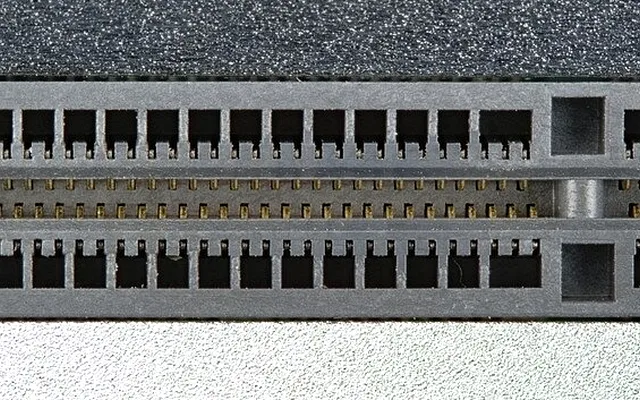
- Re-seat the M.2 Card Firmly Before Screwing Down: When inserting an M.2 stick at a 25-degree angle, you must push it inward until it overcomes the socket spring detent and the gold pins almost completely disappear inside the slot (if 2mm of gold teeth are still visible when you push it flat, it won’t make contact!).
- Check Motherboard M.2 Lane-Sharing Rules: On many B550/B650/Z690/Z790 motherboards, populating the bottom 3rd M.2 slot (`M2_3`) is automatically disabled if you have an old SATA cable plugged into SATA Ports 5 & 6 or an expansion card in the bottom PCIe x4 slot. Move your SATA cable to SATA Port 1 or 2!
Recommended Amazon Upgrades: Top 2TB NVMe SSD & $18 USB-C NVMe Tester/Cloner
| Hardware Item (Amazon) | Use Case | Key Specs | Price |
|---|---|---|---|
| Best 2TB NVMe SSD | 7,450 MB/s Read, 2GB DRAM, 1-Click Magician Cloning | $159 / Amazon | |
| Best External M.2 Cloner & Tester | Tests any M.2 SSD over USB-C + turns old 500GB SSD into a 1,000 MB/s portable drive! | $18 / Amazon |
Related Storage & PC Build Guides
Pros
- 20-second Windows 11 Disk Management GPT initialization requires zero third-party downloads
- Samsung 990 PRO ($159) & WD_BLACK SN850X ($149) work in 100% of PCIe 4.0/5.0/3.0 M.2 NVMe slots
- UGREEN Tool-Free USB-C M.2 NVMe Enclosure ($18 on Amazon) lets you test or clone any M.2 SSD externally
Cons
- Some older motherboards disable the bottom M.2 slot if SATA Ports 5 & 6 are plugged in (check lane sharing)
Frequently Asked Questions
Why does my new 2TB (2,000GB) NVMe SSD only show '1,863 GB' of space in Windows 11?
That is 100% normal binary vs decimal math! SSD manufacturers define 2 Terabytes in decimal (2,000,000,000,000 bytes), whereas Windows measures in binary Gibibytes (`2,000,000,000,000 / 1024^3 = 1,862.65 GiB`, yet labels it 'GB'). Every 2TB drive on Earth shows 1,863 GB in Windows.
Should I format a new 2TB NVMe SSD as GPT or MBR in Disk Management?
Always select GPT (GUID Partition Table). GPT is the modern UEFI standard required by Windows 11, supports drives larger than 2TB, and maintains redundant partition header backups against corruption.
Why doesn't the Windows 11 USB installer see my M.2 NVMe SSD on an Intel 12th/13th/14th-Gen laptop or PC?
On Intel motherboards and laptops, Intel enables 'Intel VMD (Volume Management Device)' by default in BIOS, which hides NVMe drives from the stock Windows 11 USB installer unless you either (A) enter BIOS and set 'Intel VMD Controller > Disabled' (easiest 10-second fix!), or (B) load the extracted `Intel RST VMD F6 Driver` folder onto your USB stick during install.
What should I do with my old 500GB M.2 SSD after upgrading to a 2TB Samsung 990 PRO?
Drop your old 500GB or 1TB M.2 stick into an $18 tool-free UGREEN Aluminum 10Gbps USB-C M.2 NVMe Enclosure from Amazon - it snaps closed without a screwdriver in 15 seconds and gives you a blazing 1,050 MB/s pocket USB-C flash drive!