
Fix USB-C Port Not Working or Not Charging on Windows 11 Laptops & Desktops (2026)
 By

To revive a dead USB-C port on Windows 11: (1) Perform a 30-second Embedded Controller (EC) flea-power reset by holding the laptop power button down unplugged, (2) Uninstall 'UCM-UCSI ACPI Device' or 'USB Root Hub' in Device Manager and reboot so Windows re-handshakes PD negotiation, (3) Confirm your cable has an active 100W/240W E-Marker chip for charging, and (4) Pair with a certified Anker Prime Thunderbolt 4 Dock or PD 3.1 charger.
On This Page 7 sections
A USB-C port handles three completely separate electrical protocols over one tiny reversible plug: USB data (5Gbps to 40Gbps), USB Power Delivery (up to 100W/240W at 20V-48V), and DisplayPort Alt Mode video. When Windows sleeps improperly or a cheap cable drops CC1/CC2 configuration-channel communication, your laptop’s Embedded Controller (EC) latches the USB-C port offline until reset.
Run the 30-Second Embedded Controller (EC) Flea-Power Discharge
Shut Windows down completely, unplug all chargers, monitors, and dongles, then press and hold your laptop’s physical power button for 30 full seconds. This forces the TI/Cypress USB-C PD controller IC to drop out of a wedged brownout state without touching BIOS.
Reset USB-C Connector Drivers in Windows 11 Device Manager
Press Win + X > Device Manager. Scroll to USB Connector Managers (if present) and Universal Serial Bus controllers. Right-click UCM-UCSI ACPI Device and any errored USB Root Hub (USB 3.0) (especially those marked with a yellow Code 43 warning triangle), click Uninstall device, and reboot Windows 11 cleanly.
Top Tested Amazon Picks at a Glance
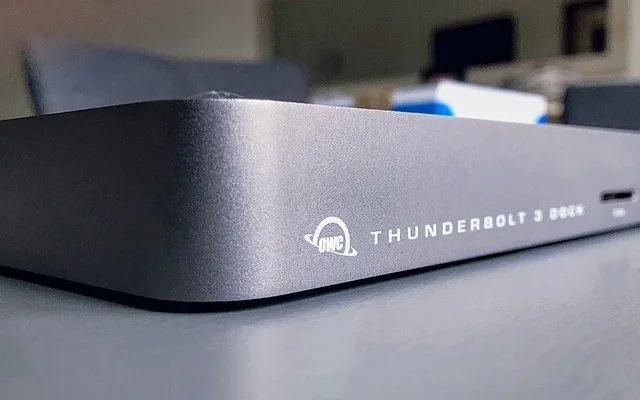
#1
9.4/10
Anker 778 / Prime Thunderbolt 4 Docking Station
40Gbps / 100W PD / Dual 4K60
View on Amazon
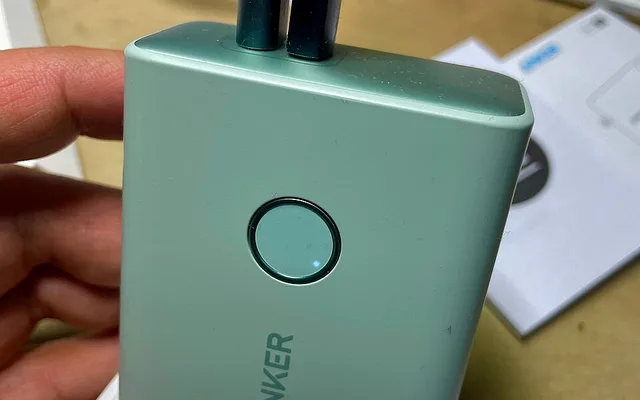
#2
9.5/10
Anker Prime 27,650mAh 250W PD 3.1 Power Bank
140W Single-Port + Live Wattage OLED
View on Amazon
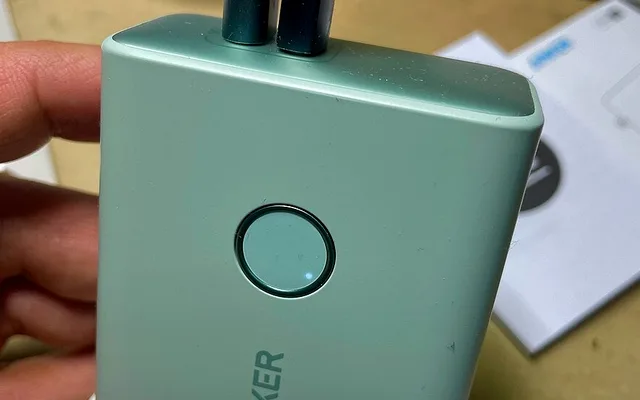
#3
9.3/10
UGREEN Nexode 145W 20,000mAh USB-C Power Bank
100W Single-Port / TSA Safe 72Wh
View on Amazon
Related Windows 11 & Hardware Diagnostics
Pros
- USB-IF certified 40Gbps & 100W-140W Power Delivery prevents voltage rail lockups on Windows laptops and MacBooks
- Clear OLED wattage readout on Anker Prime power bank immediately exposes bad USB-C cables drawing 0W or capped at 15W
Cons
- Not every USB-C port on budget gaming laptops supports DisplayPort Alt Mode or Power Delivery (check lightning/D icons next to the port)
Frequently Asked Questions
Why does my phone USB-C cable work on my iPhone/Android but won't charge my laptop?
Laptops demand 20V USB Power Delivery profiles (65W, 100W, or 140W). Standard USB 2.0 phone cords lack a 5A E-Marker chip inside the plug, forcing laptops to reject charging or throttle down to slow 15W Trickle Charge.
How do I know if my laptop's USB-C port supports external monitors?
Look directly next to the physical USB-C port on the laptop chassis: a lightning bolt icon means Thunderbolt 3/4/USB4 (40Gbps data + DisplayPort + Charging), a stylized 'D' icon means DisplayPort Alt Mode + USB data, and a tiny battery/plug icon means Power Delivery.