
Fix 144Hz, 240Hz or 360Hz Monitor Stuck at 60Hz on Windows 11 (2026 Checklist)
 By
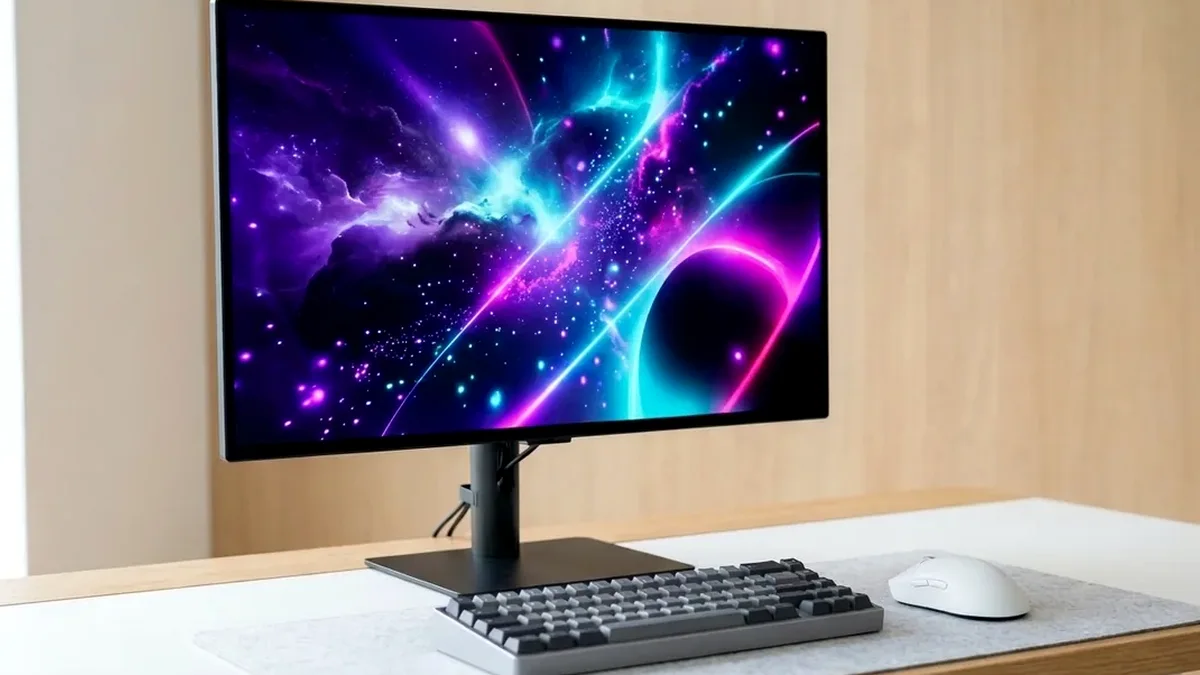
When a 144Hz, 240Hz, or 360Hz monitor runs at 60Hz in Windows 11: (1) Open Settings > System > Display > Advanced display > Choose a refresh rate and change 60Hz manually (Windows defaults to 60Hz on fresh setups!), (2) Switch from HDMI 1.4/2.0 to DisplayPort 1.4/2.1 or HDMI 2.1, (3) Select 'PC resolutions' in NVIDIA Control Panel instead of 'Ultra HD, HD, SD', and (4) Enable 'DisplayPort 1.4' / 'Overclock / 240Hz' in your monitor's OSD.
On This Page 7 sections
Unpacking a brand-new 240Hz OLED or 180Hz IPS gaming monitor only to play your first three matches at 60Hz is the single most common setup mistake in PC gaming. Windows 11 never raises your refresh rate above 60Hz automatically out of the box, and several GPU/monitor EDID quirks cap the dropdown list to 60Hz/120Hz until configured properly.
Change the Hidden Windows 11 Advanced Display Setting
Right-click your desktop > Display settings > scroll down to Advanced display. Select your gaming monitor from the dropdown at the top, click Choose a refresh rate, and pick 144Hz, 180Hz, 240Hz, or 360Hz. Immediately confirm live at TestUFO.com that the UFO row hits your exact target Hz with green ‘VALID’ status.
Unlock Full Hz in NVIDIA Control Panel & Monitor OSD
On NVIDIA GPUs, open NVIDIA Control Panel > Display > Change resolution. By default, NVIDIA puts your monitor under the Ultra HD, HD, SD television list (which locks 4K/1440p to 60Hz/120Hz!). Scroll down cleanly to the PC resolution list and select native resolution there, then confirm inside your monitor’s physical OSD buttons that DisplayPort Stream / HDMI Compatibility Mode is set to DP 1.4 / 2.1 / DSC On (not legacy DP 1.1 or HDMI 1.4).
Top Tested Amazon Picks at a Glance
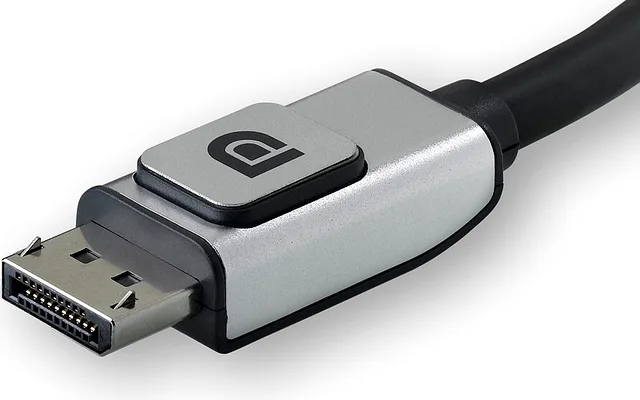
#1
9.7/10
Silkland VESA Certified DisplayPort 2.1 Cable
DP54/DP80 Certified / No Pin-20 Backfeed
View on Amazon
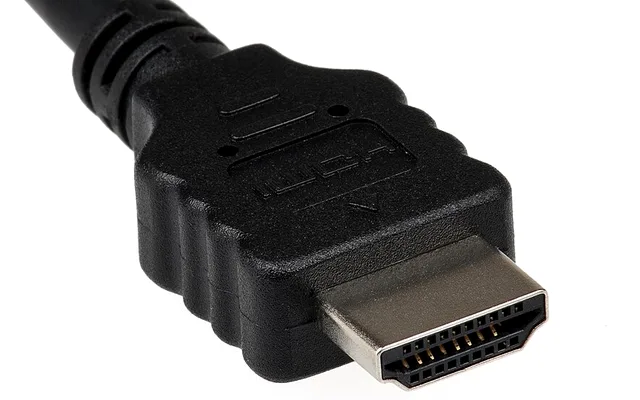
#2
9.7/10
Zeskit Maya 48Gbps Certified HDMI 2.1 Cable
4K 144Hz / 1440p 240Hz Ultra High Speed
View on Amazon
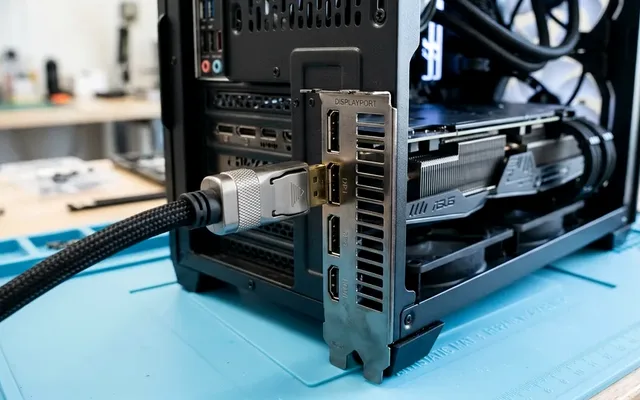
#3
9.3/10
LG UltraGear 27GR83Q-B 1440p 240Hz Fast IPS
240Hz Over Both DP 1.4 & 2x HDMI 2.1
View on Amazon
Related Windows 11 & Hardware Diagnostics
Pros
- VESA-certified 54Gbps/80Gbps DP 2.1 & 48Gbps HDMI 2.1 cables carry uncompressed 1440p 240Hz / 4K 144Hz signals effortlessly
- Eliminates legacy HDMI 1.4/2.0 EDID pixel-clock caps on Xbox, PS5 Pro, and Windows GPUs
Cons
- Remember to verify Windows Refresh Rate per display separately in multi-monitor setups
Frequently Asked Questions
Why is my 144Hz monitor capped at 100Hz/120Hz over HDMI?
On many 1440p and 4K monitors, the manufacturer installed full-bandwidth DisplayPort 1.4 jacks but used older 18Gbps HDMI 2.0 ports (which mathematically run out of bandwidth above 1440p 144Hz 8-bit or 4K 60Hz). Switching to a VESA-certified DisplayPort cable immediately unlocks 165Hz, 240Hz, and 360Hz.
Should I turn on Display Stream Compression (DSC) in my monitor's OSD?
Yes. DSC is visually lossless 3:1 compression standardized by VESA and required by 4K 240Hz and 1440p 360Hz displays to fit uncompressed 10-bit RGB video over DisplayPort 1.4.