
How to Fix HDMI No Signal on Windows 11 & 4K 120Hz TVs (2026 Handshake Guide)
 By
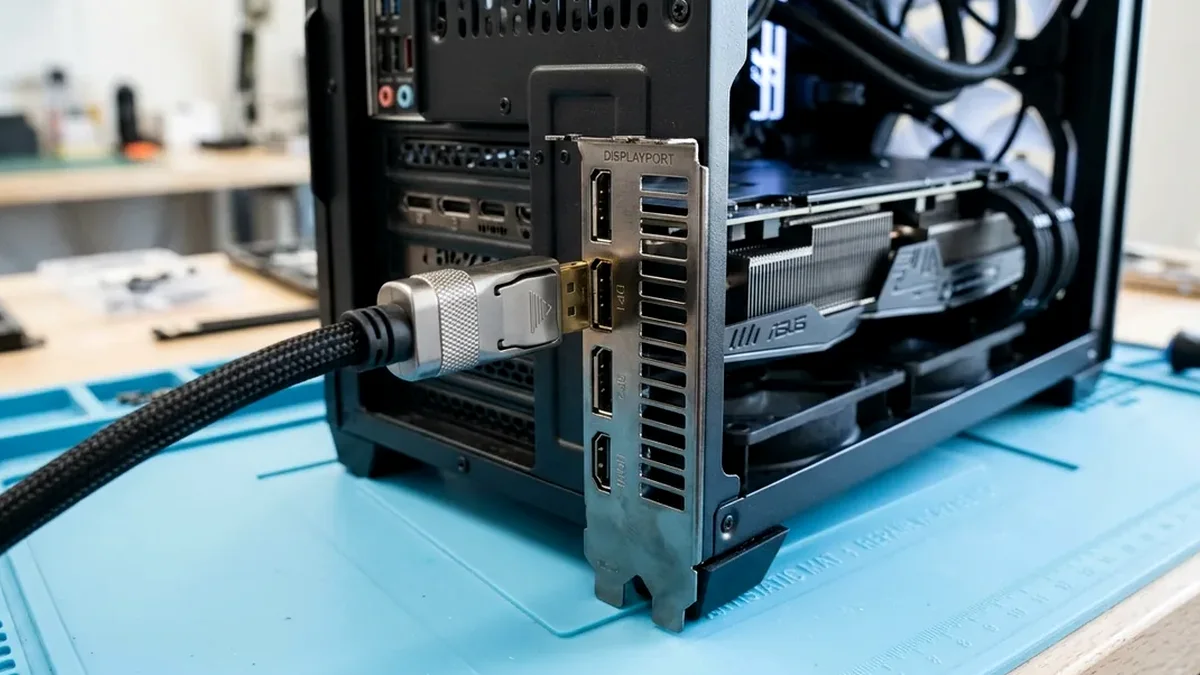
To fix 'HDMI No Signal' or flickering black screens between a Windows 11 PC (or PS5 Pro) and a 4K TV/monitor: (1) Press Win + P > select Duplicate/Extend, (2) Enable 'HDMI Ultra HD Deep Color / Input Signal Plus' on the TV's HDMI port, (3) Drop refresh rate from 144Hz to 120Hz 10-bit RGB to test bandwidth, and (4) Use a QR-Certified 48Gbps Zeskit Maya HDMI 2.1 cable under 10 feet.
On This Page 7 sections
Connecting a Windows 11 gaming PC, laptop, or PS5 Pro to a 4K 120Hz/144Hz TV or monitor over HDMI 2.1 pushes up to 48 Gigabits per second (48Gbps) of Fixed Rate Link (FRL) data plus an encrypted HDCP 2.3 handshake. When either the EDID handshake corrupts or a cable fails high-frequency FRL training, your screen drops to “HDMI No Signal” or flashes black every time you launch a game.
Force Windows 11 HDMI Re-Detection (`Win + P` & `Win + Ctrl + Shift + B`)
If your laptop or dual-screen desktop suddenly stops outputting to your HDMI monitor or 4K TV:
- Press
Win + Ctrl + Shift + Bto reload the GPU driver. - Press
Win + P, wait 1 second, press the Down Arrow key once, and press Enter (repeat if needed to cycle from PC Screen Only to Extend or Second Screen Only).
Fix the #1 4K TV Trap: Enable “HDMI Deep Color / Enhanced VRR” on the TV Port
When you enable 4K 120Hz/144Hz or HDR in Windows 11 and your 4K TV immediately goes black with “No Signal / Invalid Format”, it is usually because the TV’s HDMI port is still in legacy HDMI 1.4/2.0 mode (or Enhanced mode toggled without VRR):
- LG OLED TVs (C3 / C4 / G4): Settings > General > External Devices > HDMI Settings > Turn ON HDMI Deep Color (4K) AND 4:4:4 Pass Through.
- Samsung OLED & Neo QLED (S90D / QN90D): Settings > Connection > External Device Manager > Turn ON Input Signal Plus (and turn ON Game Mode).
- Sony / Hisense / TCL Google TVs: Settings > Channels & Inputs > External Inputs > HDMI Signal Format > Select Enhanced Format (VRR / 144Hz).
Perform a 60-Second HDCP / EDID Cold Power Reset
Smart TVs never truly turn off when you press the remote power button – their HDMI receiver chip stays energized for CEC wake commands and often locks up after a Windows sleep/wake cycle or GPU driver update.
- Shut down your PC and turn off your TV/monitor.
- Unplug the HDMI cable from both ends AND unplug the TV’s AC power cord from the wall outlet for 60 full seconds.
- Plug the TV back into the wall, reconnect the HDMI cable directly into your GPU (skipping any AVR receiver or splitter), and boot your PC.
Test 4K 60Hz vs 4K 120Hz/144Hz to Expose Cable Bandwidth Dropouts
If your screen works at the BIOS boot logo or at 1080p/4K 60Hz, but loses signal the moment you enable 4K 120Hz/144Hz + HDR + VRR, your HDMI cable is failing 40Gbps/48Gbps FRL training! Standard “High Speed 18Gbps HDMI 2.0” cables can carry 4K 60Hz (17.8 Gbps), but physically collapse when your GPU switches to 4K 120Hz 10-bit RGB (40.1 Gbps) or 4K 144Hz (48 Gbps).
Recommended Amazon Fix: Official QR-Certified 48Gbps HDMI 2.1 Cable
Zeskit Maya 48Gbps Certified Ultra High Speed HDMI 2.1 Cable (6.5ft / 10ft)
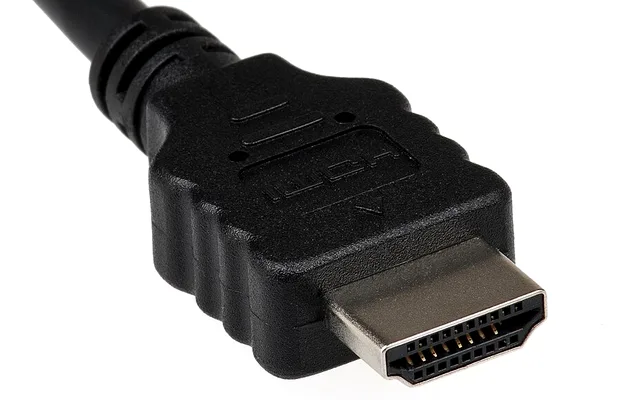
Tested and certified by an HDMI Forum Authorized Test Center (with a scannable hologram QR sticker on every box), the Zeskit Maya 48Gbps cable uses solid-core bare copper conductors and a one-piece tinplate metal EMI shield around the connector PCB – curing 4K 120Hz/144Hz VRR + HDR black-screen dropouts on NVIDIA RTX, AMD Radeon, and PS5 Pro systems.
- Certification
- Official HDMI Forum Ultra High Speed QR
- Max Bandwidth
- 48Gbps FRL (4K 120Hz/144Hz 12-Bit RGB + VRR)
- EMI Protection
- Full-Wrap Tinplate Metal Housing
- Optimal Length
- 6.5ft (2m) or 10ft (3m) Passive Copper
Related Display & TV Guides
Pros
- Official HDMI Forum Hologram QR certification guarantees full 48Gbps FRL stability
- Eliminates 4K 120Hz/144Hz VRR + HDR handshake dropouts on LG C4, Samsung S90D & PS5 Pro
- Solid copper conductors + tinplate metal EMI shielding for ~$16 on Amazon
Cons
- For runs longer than 10-15 feet, step up to an Active Fiber-Optic 48Gbps HDMI 2.1 cable
Frequently Asked Questions
Why does my 15-foot or 25-foot HDMI 2.1 cable keep dropping signal at 4K 120Hz?
Passive copper cables lose high-frequency 48Gbps FRL signal integrity past 10 feet (3 meters). If your gaming PC sits 15, 25, or 33 feet away from your living-room 4K TV, buy a 'RUIPRO 8K/4K120 Fiber Optic Certified HDMI 2.1 Cable' on Amazon - active optical fiber carries 48Gbps up to 50 feet with zero signal loss!
Why did enabling G-Sync / VRR on my 4K TV cause the screen to go black?
Some TVs require Game Mode to be manually turned ON in the TV menu BEFORE enabling G-Sync or FreeSync in your PC's GPU control panel. Turn on Game Mode on the TV first, then enable VRR on your PC.
Can I use a DisplayPort-to-HDMI adapter for 4K 120Hz VRR?
Avoid passive DP-to-HDMI adapters on 4K 120Hz TVs - almost all DP-to-HDMI protocol converters strip out NVIDIA G-Sync / HDMI Forum VRR metadata. Always connect a 4K 120Hz/144Hz TV directly to your graphics card's native HDMI 2.1 port!
Why do I hear game audio through my TV speakers while the screen stays black?
Because audio occupies a tiny fraction of the HDMI data stream, while a bad cable or unsupported color depth (like 12-bit at 144Hz on an 18Gbps cable) drops the high-bandwidth video FRL lanes.