
Fix Windows 11 Micro-Stuttering in Games (MPO, fTPM & 1% Low FPS Guide 2026)
 By
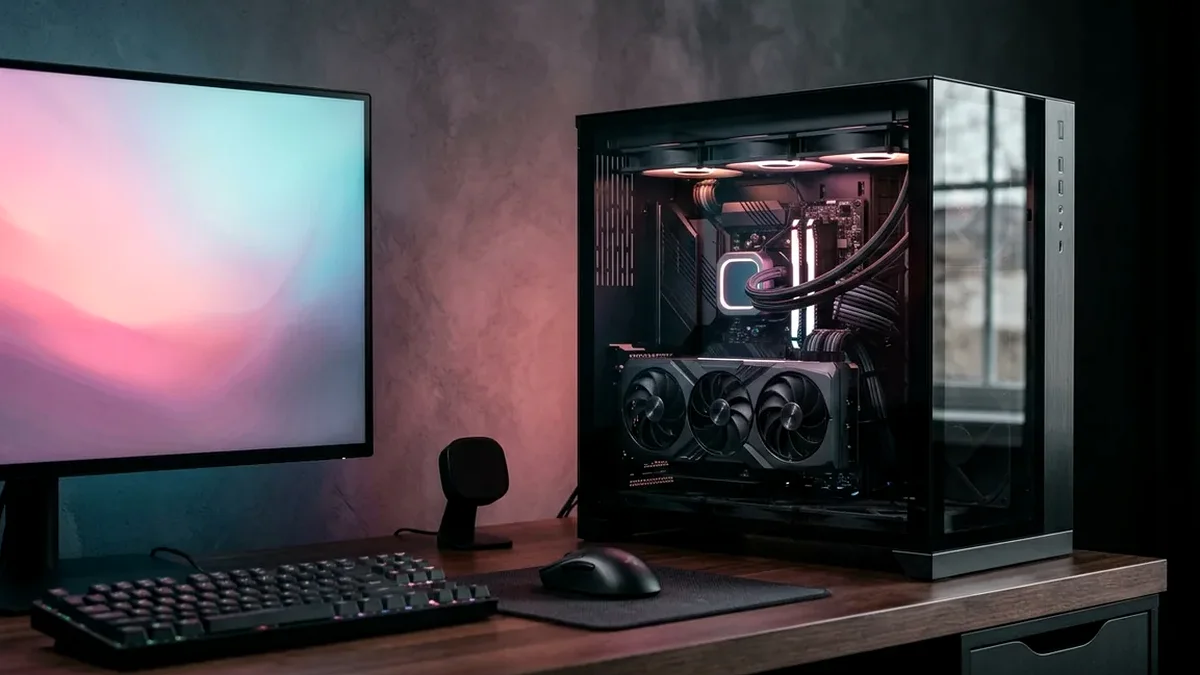
To stop Windows 11 game micro-stuttering (high average FPS with sharp 50-120ms frametime spikes): (1) Disable Hardware-Accelerated GPU Scheduling (HAGS) or test toggling Multiplane Overlay (MPO) via NVIDIA's official mpo_disable.reg, (2) Update motherboard AGESA BIOS to patch AM4/AM5 fTPM PSP RNG stalls, (3) Set an RTSS or NVIDIA Reflex frame cap 4 FPS below your refresh rate, and (4) Keep CPU/VRM boost clocks cool with a dual-tower Thermalright Phantom Spirit 120 EVO.
On This Page 8 sections
High average FPS means nothing if your game freezes for 80 milliseconds every time you turn the camera or round a corner. Measured with CapFrameX and PresentMon telemetry, micro-stuttering in Windows 11 rarely comes from a weak GPU alone. Instead, 90% of unexplained 1% low drops come from four specific OS and firmware mechanisms: Windows Multiplane Overlay (MPO), unpatched AMD fTPM polling interruptions, DRAM-less SSD texture streaming saturation, or brief CPU Vcore thermal throttling.
Separate Thermal/Shader Stutter from Windows DWM Compositor Hitches
Run free CapFrameX for 60 seconds during gameplay. Smooth gameplay keeps P1 (1% low) within 25-30% of average FPS and keeps P0.2 variance low. If frametime spikes align every 1.2 seconds while browsing Discord/YouTube on a 2nd monitor at a mismatched refresh rate, Windows Desktop Window Manager (DWM) MPO scaling is the root trigger.
Toggle Windows HAGS & Test NVIDIA mpo_disable.reg
- Press Win + I > System > Display > Graphics > Change default graphics settings. If you use an RTX 40/50 card with DLSS Frame Generation, keep HAGS On; otherwise, test toggling it Off and rebooting.
- Download NVIDIA’s official Knowledge Base
mpo_disable.regfile if windowed-borderless games stutter when hardware acceleration is active in Chrome or Discord.
Eliminate Shader Cache I/O & CPU Thermal Throttling
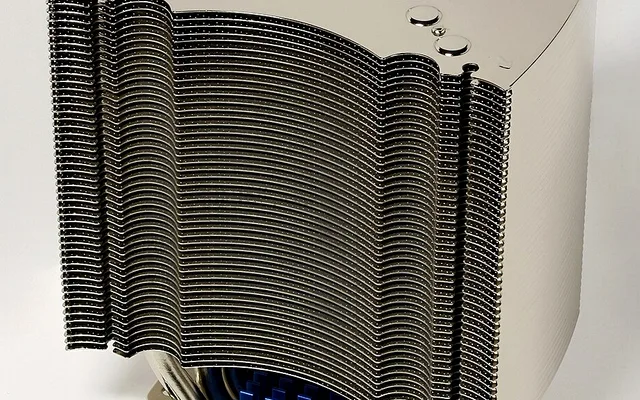
UE5 games compile PSO shaders and stream high-res mipmaps concurrently. Running games from an aging SATA HDD or an almost-full DRAM-less QLC SSD causes 120ms+ I/O wait stalls, while hitting 95C drops Zen 4/5 CPU clocks by 400MHz mid-combat. Upgrading cooling with the Thermalright Phantom Spirit 120 EVO and shifting your Steam library to a DRAM-cached WD_BLACK SN850X stabilizes 0.1% lows measurably.
Top Tested Amazon Picks at a Glance
#1
9.6/10
Thermalright Phantom Spirit 120 EVO Dual-Tower Cooler
7 Heatpipes / Keeps Ryzen X3D Boost Locked
View on Amazon
#2
9.7/10
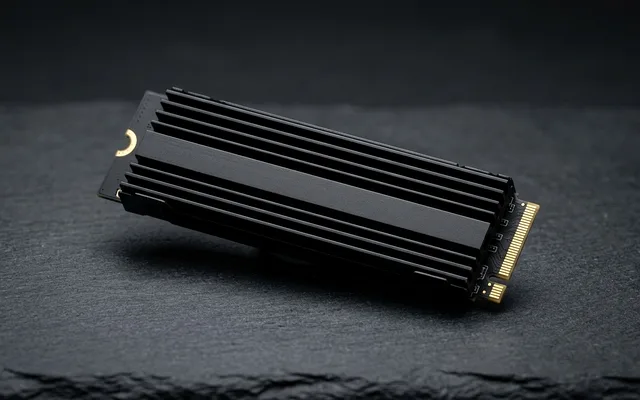
WD_BLACK 2TB SN850X NVMe PCIe 4.0 SSD
7,300 MB/s / 2GB LPDDR4 DRAM Cache
View on Amazon
#3
9.7/10
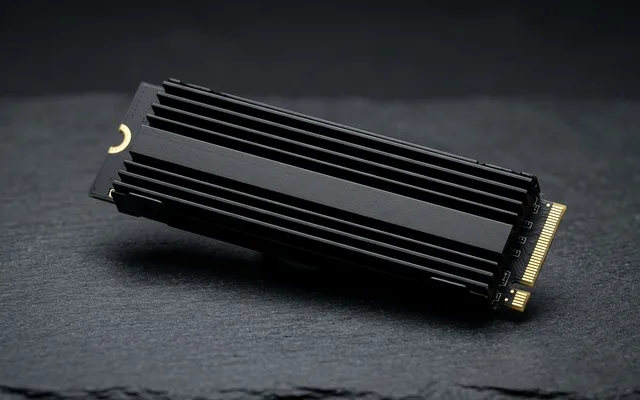
Samsung 990 PRO 2TB PCIe 4.0 NVMe SSD
1,400K IOPS / Samsung Controller
View on Amazon
Related Windows 11 & Hardware Diagnostics
Pros
- Maintains steady 5.2GHz-5.4GHz Ryzen 3D V-Cache boost clocks without thermal downclocking stutters
- WD_BLACK SN850X eliminates shader compilation I/O hitches with 7,300 MB/s read speeds
- Zero pump degradation risk and 35 dBA noise-normalized acoustic profile
Cons
- Must still install clean motherboard chipset drivers and update BIOS for fTPM stutters
Frequently Asked Questions
Does disabling HPET (High Precision Event Timer) in Device Manager fix Windows 11 stuttering?
On Windows 11 builds 22H2 and newer, Microsoft recommends leaving Windows timer defaults intact unless troubleshooting a specific legacy OEM laptop bug; forcing `useplatformclock` manually in bcdedit often degrades frame pacing rather than helping.
Why do 1% lows drop even when GPU usage is only 70%?
A 70% GPU utilization readout during stutter indicates either a CPU single-thread bottleneck (such as memory latency or thermal throttling), background shader compilation, or storage asset decompression wait states.